

Edit TechDocs and MkDocs pages like a document, without breaking the Markdown your pipeline expects.
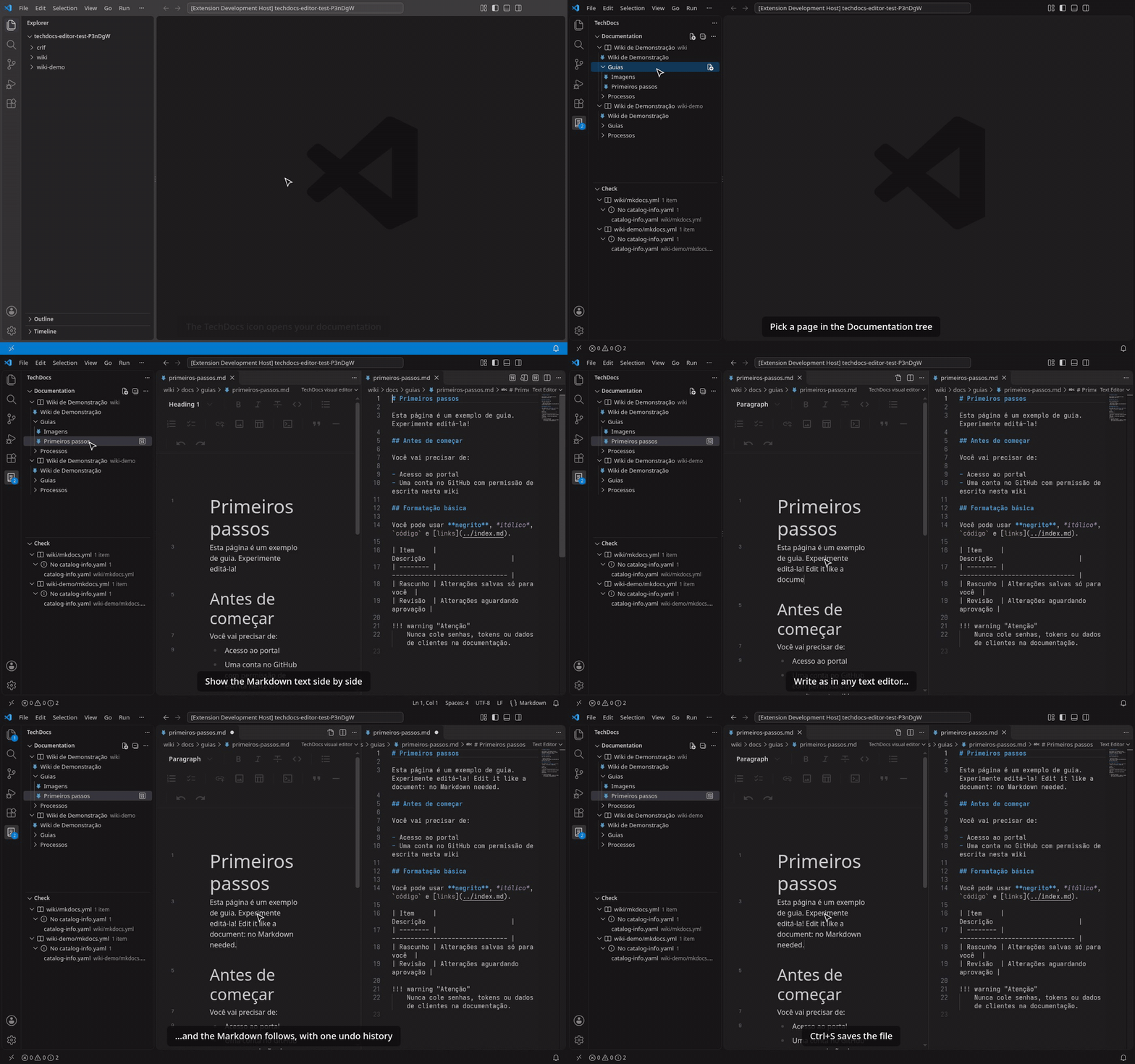
Docs-as-code works well for developers and badly for everyone else: product managers, support, designers and new hires avoid the docs because of Markdown, admonitions and a lint that fails in the pipeline. TechDocs Editor gives them a visual editor inside VS Code, and gives the repository back exactly the Markdown it had, plus their changes.
It is the same editor as the TechDocs editor plugin for Backstage, so pages edited in the portal and in VS Code come out the same.
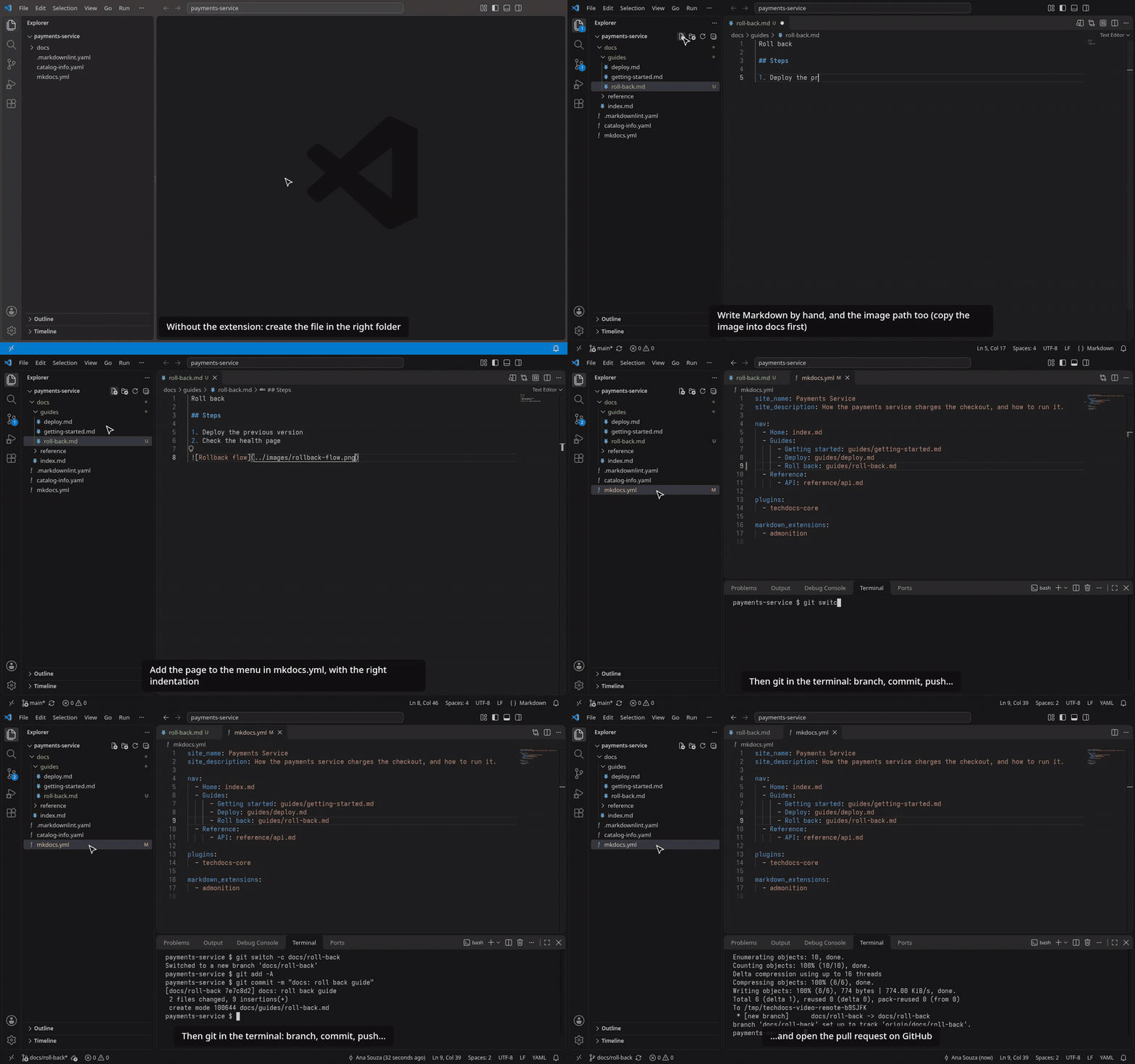
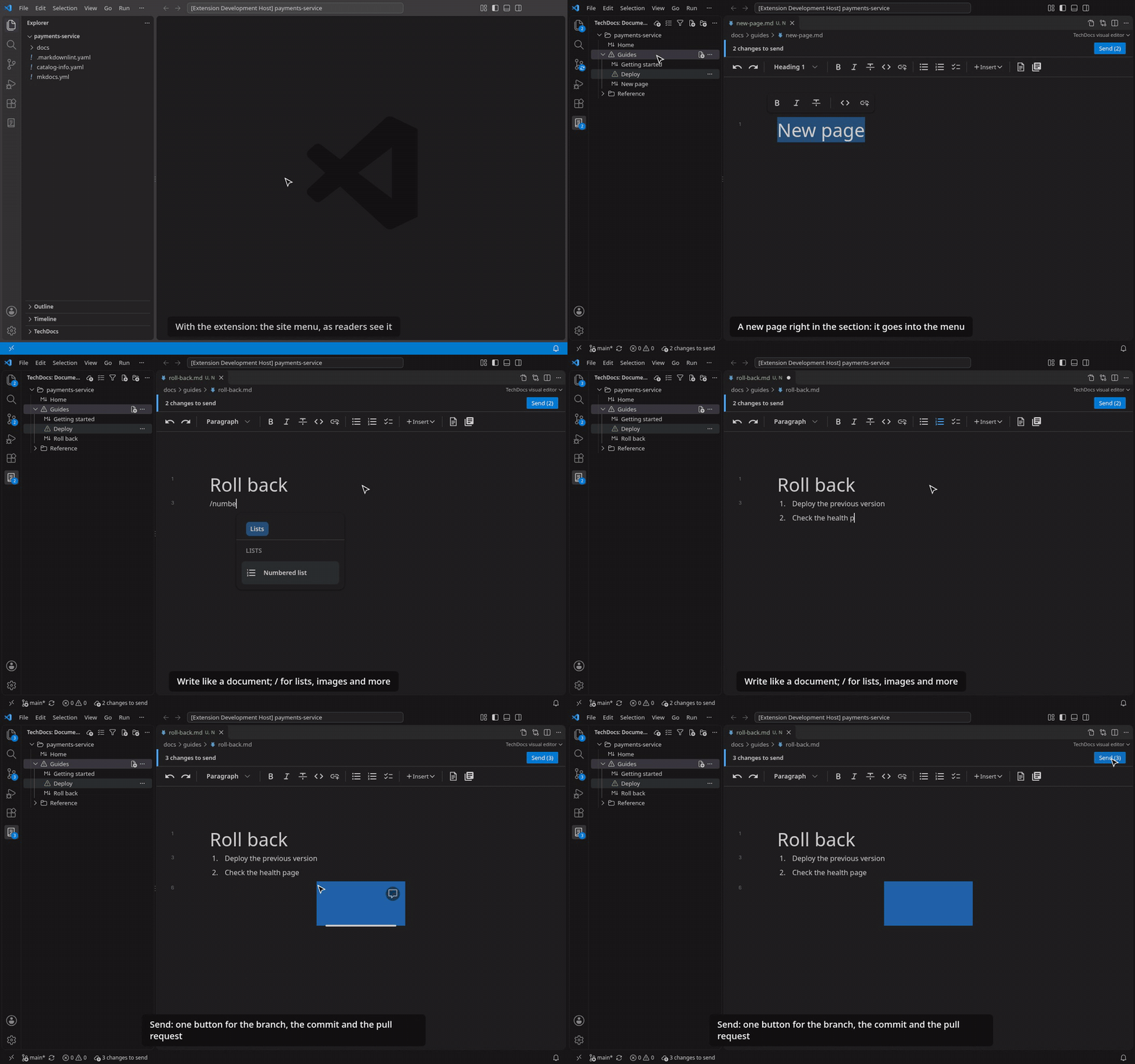
A new page in the Guides section, with steps and an image, in the site menu and sent for review.
| Without the extension | With the extension |
|---|---|
 |
 |
Markdown, image paths, the nav of mkdocs.yml and git, all by hand |
The menu, the visual editor and Send |
From installing to writing: the documentation tree, a blank page, a page from a template, the visual editor, a Mermaid diagram and fixing formatting (video, MP4).
| Visual editor | Edit pages like a document; saving changes only what you edited. MkDocs blocks (admonitions, tabs, front matter) are kept |
| Documentation tree | The pages in the order of the site menu, ⚠ on pages and sections with problems, rename, move, duplicate and delete with Undo |
| New pages | A blank page or a template (runbook, ADR, tutorial…), right in the section of the menu |
| New sites | A preview of mkdocs.yml, menu and pages before anything is written, from the README or the pages you already have |
| Formatting | The pipeline's markdownlint rules, in plain language, with Fix automatically |
| Mermaid | Diagrams drawn in place, and the site set up to draw them |
| Images, attachments and paste | Images saved to docs/images, PDFs and other files to docs/assets; paste from Confluence, Outline and the web as Markdown |
| Check | What TechDocs needs to build the site, with the fixes shown before they are applied |
| GitHub | Clone, edit on your computer and send the whole repository for review in one step |
| Keyboard | Everything reachable without the mouse: Enter in the tree opens the page, with the cursor in the text |
- Opening a page never changes it. Saving only touches what you edited: the rest of the file stays byte for byte (Windows line endings too), so diffs and reviews stay small.
- TechDocs components look like in Backstage. Admonitions (
!!! note), collapsible blocks (???), tabs (===), cards, buttons ({ .md-button }) and glossaries (term and: meaning) are edited visually, and the file keeps the MkDocs syntax. The TechDocs group is in the/menu and in a toolbar button; Link to another doc searches the docs of the other sites in the workspace (by theircatalog-info.yaml) and writes/docs/default/component/<name>/, which opens in any Backstage. The front matter (---) stays as a protected block. - Familiar editing: a toolbar like a word processor,
/to insert blocks, tables (Tab adds a row), task lists, code blocks with syntax highlighting, links to the other pages of the site and images. Images keep their alt text. - Shortcuts stay in the editor: Ctrl+B, Ctrl+I, Ctrl+E and the other formatting shortcuts format the text instead of running VS Code commands with the same keys.
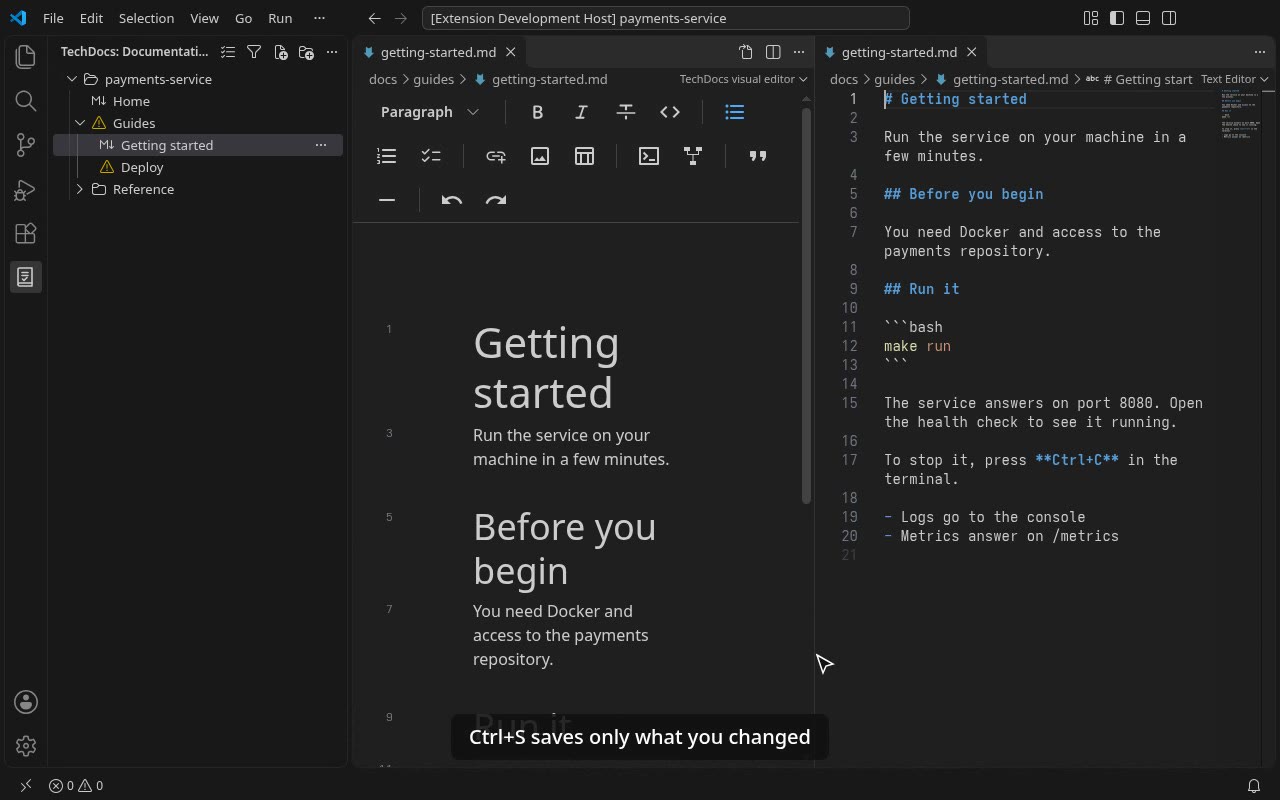
- It is still a text file. Open the Markdown side by side and edit either one: both follow each other,
with a single undo history (Ctrl+Z works the same in both). A change from outside (a
git pull) shows up in the open page. - Your theme: light, dark and high contrast, with VS Code's colors and fonts.
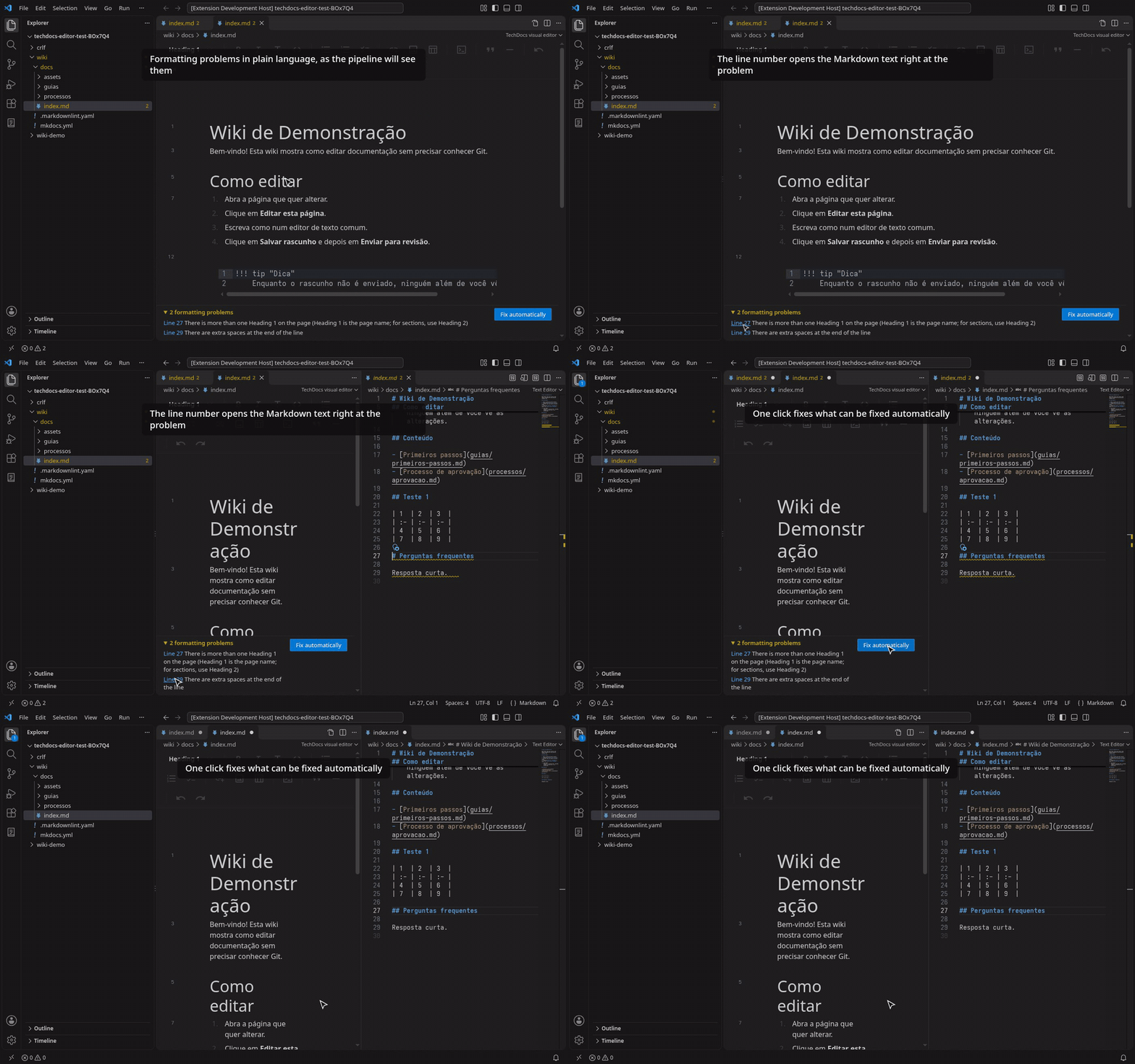
- The same markdownlint rules your pipeline runs, with your
repository's
.markdownlint.{jsonc,json,yaml,yml}, checked while you type. - ⚠ in the tree on every page with problems, also the ones nobody opened, and on the section around them, so you see where the problems are before the pipeline does.
- Problems in the Problems panel and in the visual editor, explained in plain language ("There is more than one Heading 1 on the page") instead of rule codes.
- Fix automatically: a button in the visual editor, a quick fix (light bulb) in the text, and
source.fixAll.techdocsfor fix-on-save. - Show line: the line number next to each block opens the Markdown text right there.
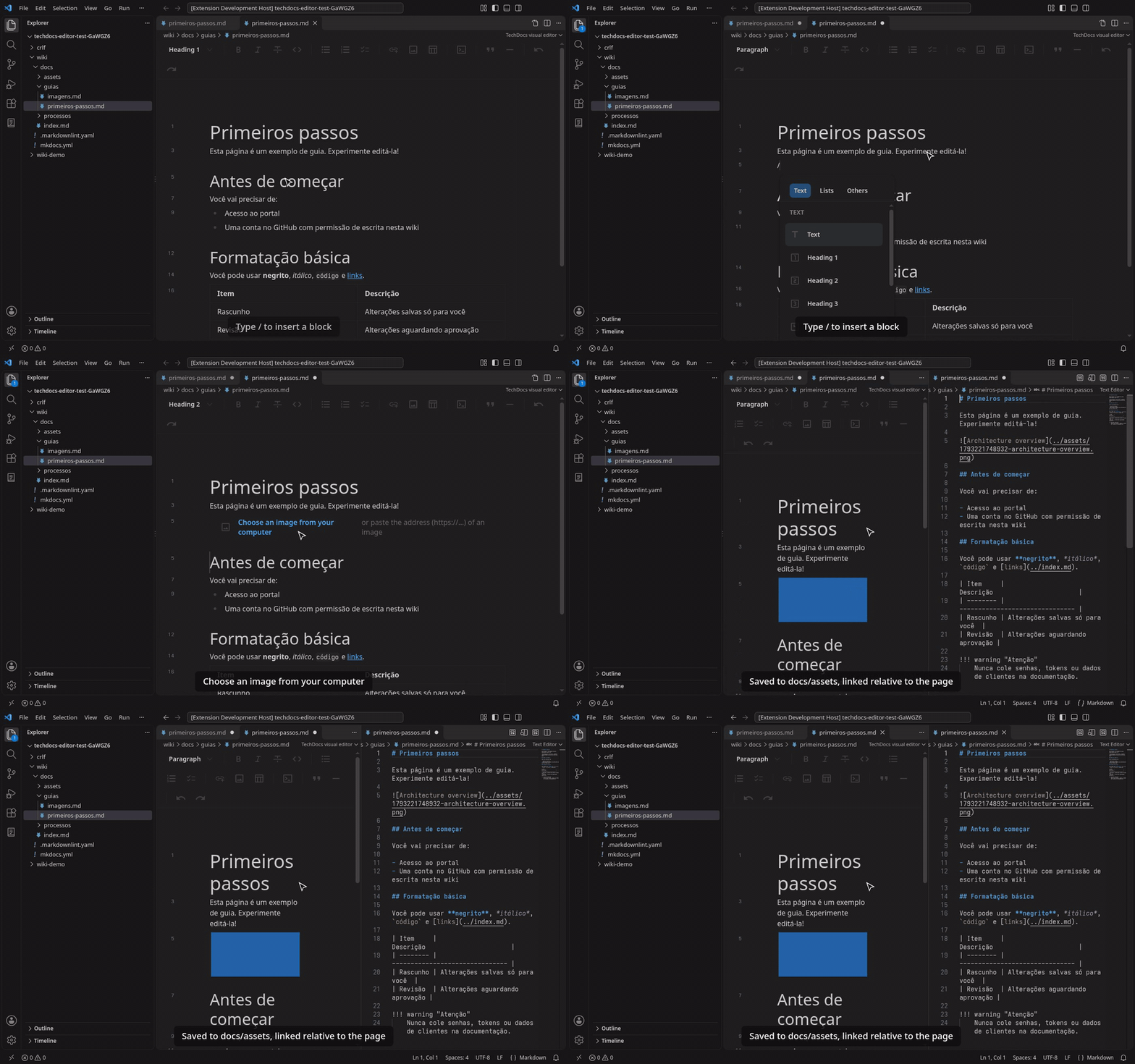
Choose an image from your computer and it is saved to docs/images/<name>, with a clean name
(Screen Shot (1).PNG → screen-shot-1.png), linked relative to the page. Never a temporary blob: address, and
never larger than you allow (techdocsEditor.images.maxSizeMB).
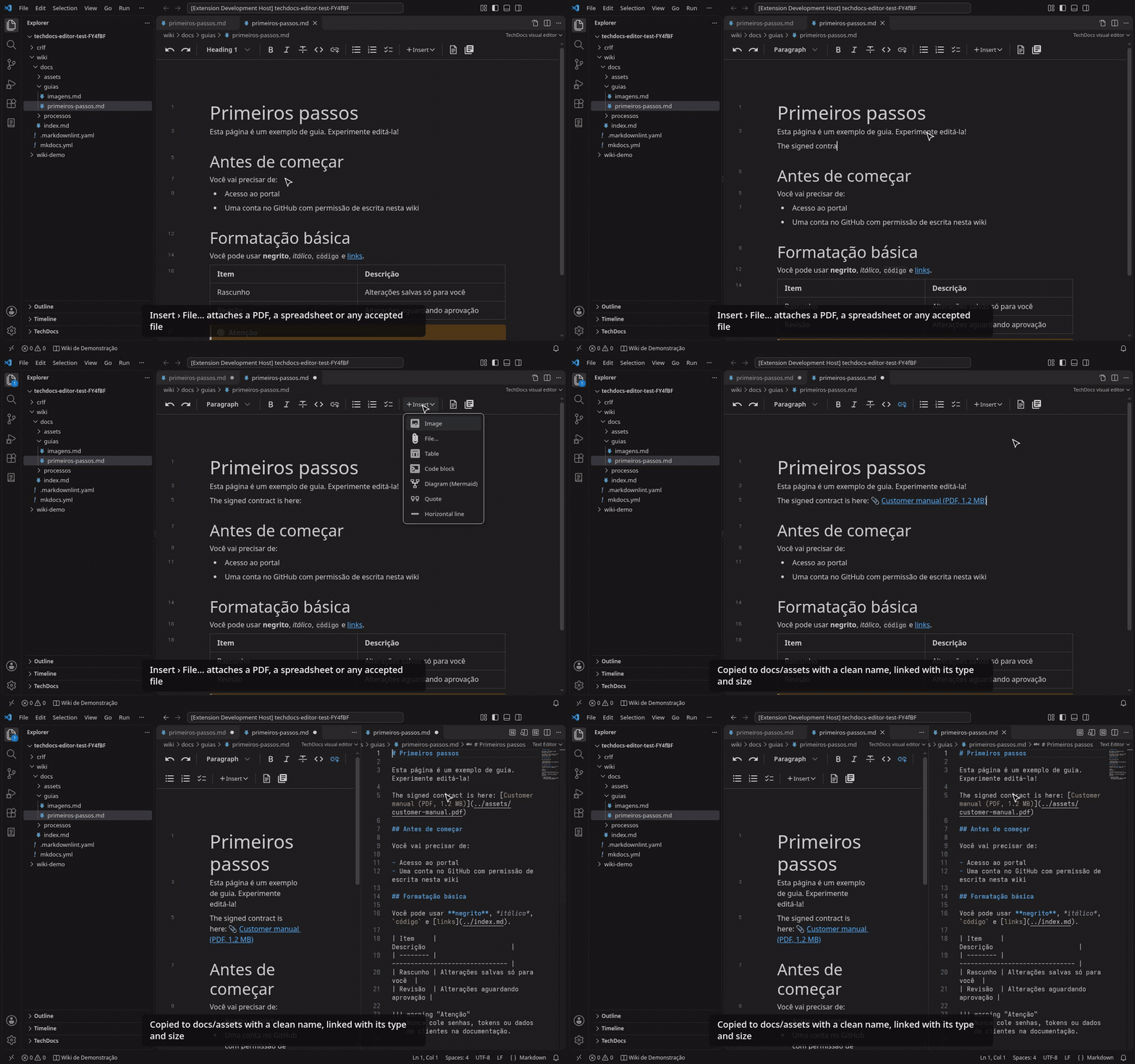
+ Insert › File… (or /file in the page) opens the file picker. Each file is copied to docs/assets/ with a
clean name and goes into the page where the cursor is, as a link with its name, type and size:
[Customer manual (PDF, 2.3 MB)](assets/customer-manual.pdf). An image chosen there goes in as an image. The same
file again is reused; another file with the same name gets -2. In the visual editor the link shows a 📎.
Executables, scripts and .md never go in. Anything outside the accepted types or larger than the limit is refused
with the reason and Open Settings. In TechDocs Settings › Images and attachments you set the directory,
the maximum size and the types of images and of other attachments (types as text, separated by commas; * accepts
any), For the team or Just for me. When you save a page that no longer links an attachment no other page
uses, you are asked Delete or Keep; nothing is deleted on its own. The Check points out attachments no page (nor mkdocs.yml) uses, with
a fix that deletes them and Undo.
Copy a page from Confluence, Outline or a web site and paste it into the visual editor: it comes in as Markdown that MkDocs builds as is.
- Code blocks stay whole, with their lines and language (not inline code on one line).
- Images are downloaded and saved to
docs/images, like an image from the computer. When an image cannot be reached (it asks for a login, or the address expired), you get a warning and the address stays. - Info, note, warning and tip panels become MkDocs admonitions (
!!! info,!!! warning…), with the panel title. - Tables with merged cells come in whole; wide tables are saved compact (
| a | b |), accepted by the lint. - Cleaned up: the table of contents of Confluence goes away (MkDocs makes its own), bold headings lose the bold,
pasted headings go down a level when the page already has a Heading 1, and links keep
&and@without a\. - In the Markdown text too: paste and pick Paste as Markdown (TechDocs) in the paste options to get the same Markdown instead of plain text.
- Extra spaces left by the paste are fixed by Fix automatically, like any formatting problem.
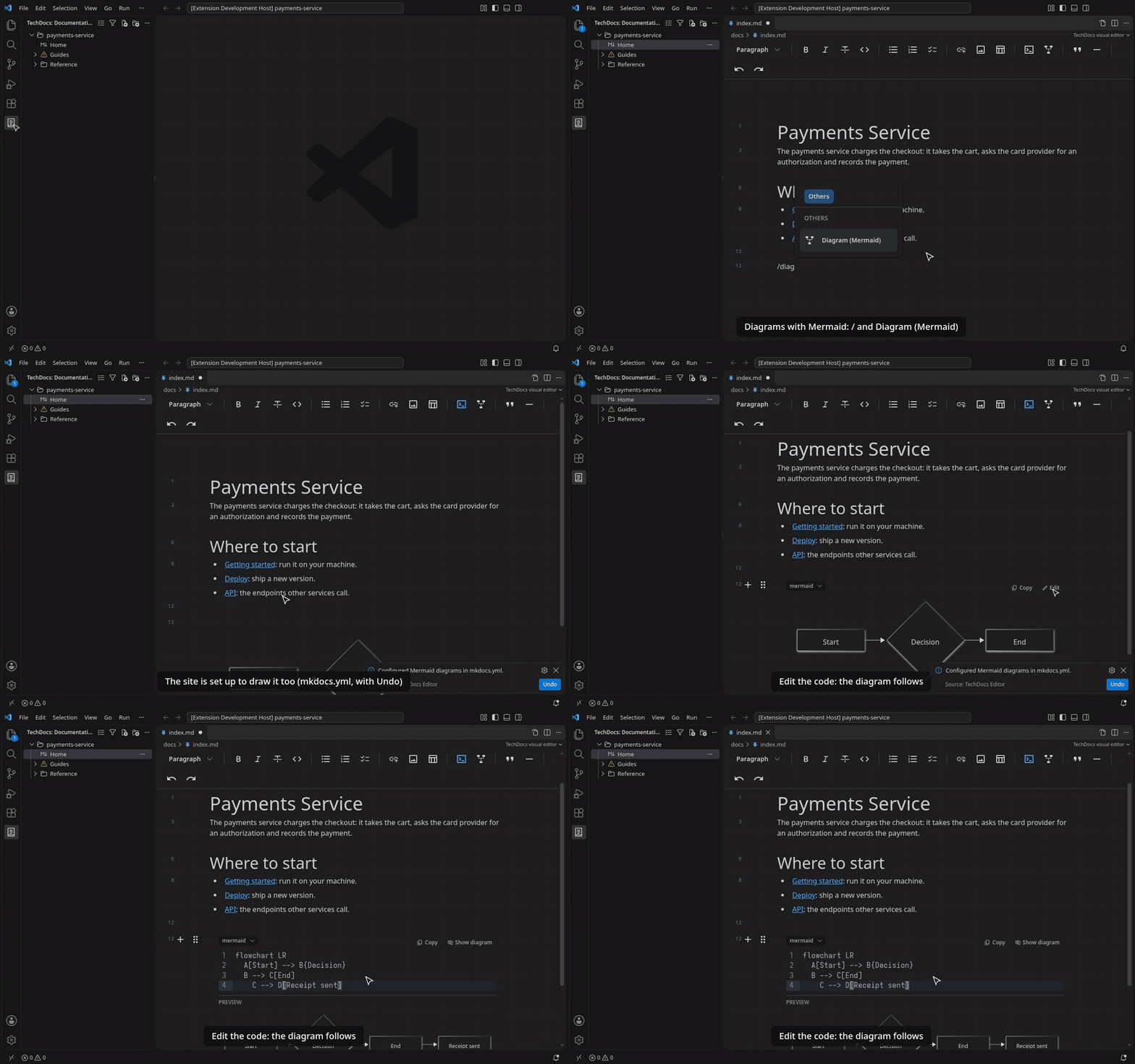
Write flowcharts, sequence diagrams and the other Mermaid diagrams in a mermaid code
block: the visual editor draws them in place, in the colorful Mermaid themes (light or dark, following VS Code), with
no network (also in VS Code for the Web).
-
Insert a diagram from the
/menu, starting from one of 29 examples in five groups (flows, structure, planning, charts and ideas), or from the gallery of + Insert › Diagram (Mermaid) in the toolbar, which shows each one drawn. Edit on the block shows the code, with the diagram redrawn below as you type. -
Newer diagram types (treemap, Ishikawa, Venn, file tree, Wardley, event modeling, swimlanes, Cynefin) carry a "Backstage 11.x+" tag and a note under the drawing: Backstage draws them only with that Mermaid version or newer.
-
Delete a diagram with the trash icon next to Enlarge (Ctrl+Z brings it back).
-
Enlarge a big diagram in a window with zoom (mouse wheel), drag to move, Fit and 100%. Wide diagrams stay readable in the editor too: they stop shrinking and scroll sideways.
-
Double-click a text in the drawing to go to it in the code, selected and ready to type over.
-
Click a node of a flowchart for + Step after, + Decision, Connect to… and Delete: the code changes for you (a new step opens with its name selected; arrows out of a decision get Yes and No), and only if the diagram stays valid. One Ctrl+Z undoes it.
-
Drag from a node to another node to connect them, or to an empty space of the drawing to add a step after it.
-
Syntax errors show in place of the diagram, with the line, and in the Problems panel while the page is open in the visual editor.
-
The site draws them too: the first diagram adds the Mermaid block of
pymdownx.superfencestomkdocs.yml(with Undo), and the Check button points out sites with diagrams and no setup, and diagrams over the Mermaid limits (500 links, 50,000 characters). -
In Backstage, TechDocs needs the Mermaid addon, installed by the Backstage admins; the colors come from it. For the same colors as the editor (addon with Mermaid 11.17 or newer), in
app-config.yaml:techdocs: addons: mermaid: lightConfig: theme: redux-color darkConfig: theme: redux-dark-color
-
Diagrams that ask for the ELK layout (
layout: elk) are drawn with it in the editor; the TechDocs site draws them with the default layout.
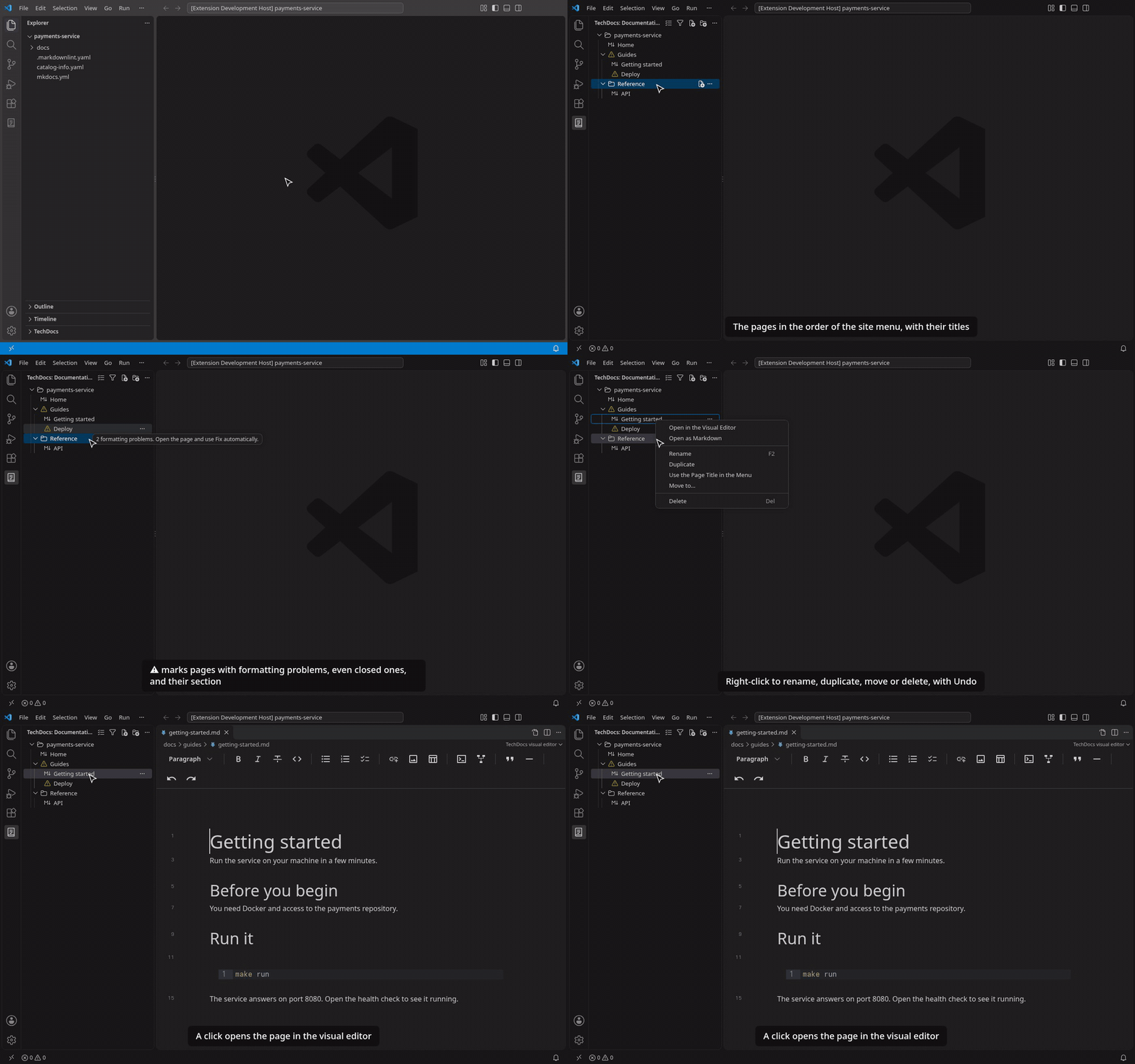
- TechDocs in the activity bar: an icon of its own, shown only in workspaces with a
mkdocs.yml, so the rest of your Markdown stays out of the way. It has three sections: Documentation, Check and the Send panel, after you send. In a repository with nomkdocs.ymlyet but with aREADME.md, adocs/folder with pages or acatalog-info.yaml, the icon opens a welcome screen that says what was found, with Prepare the documentation. - Documentation tree: the pages in the order of the
navinmkdocs.yml(or of the folders, without anav), with the page titles, also as a TechDocs section in the VS Code Explorer, under the files. Pages missing from thenavare grouped under Not in the menu, each with a + to add it, andnaventries pointing to missing pages are flagged. Filter finds a page by its title. - ⚠ where something is wrong: on pages with formatting problems (open or not) and on
naventries pointing to missing pages. A section with any of them shows ⚠ too, even collapsed, and its tooltip says what: the missing page first, since it breaksmkdocs build --strict. - Keyboard only: arrows move in the tree and Enter opens the page in the visual editor, with the cursor in the text, ready to type.
- Files in the VS Code Explorer: moving, renaming or deleting pages and folders of
docsin the Explorer also updates the menu (nav) and the links of the pages, with Undo in the notice. Right-click a folder › Open in TechDocs to show its documentation; right-click a.mdoutsidedocs(the README) › Copy to a Page to turn it into a page, with images copied intodocsand links to code pointing to GitHub. - Organize from the tree: the ⋯ on a page or section opens a menu with Rename (
F2), Duplicate, Move to…, Move up/down (Alt+↑/Alt+↓), Delete and New section; pages and sections can also be dragged. Deleting a page says which pages link to it. Every change shows Undo (alsoCtrl+Zin the tree). Rename, Duplicate and New section ask nothing: the page opens with its title selected, you type over it and save. The menu follows the title; a new page, copy or section also takes the name of the title for its file or directory on the first save (a page that already existed keeps its file, so links do not break). - Only on docs pages: the Open in visual editor button and command show up for pages inside a
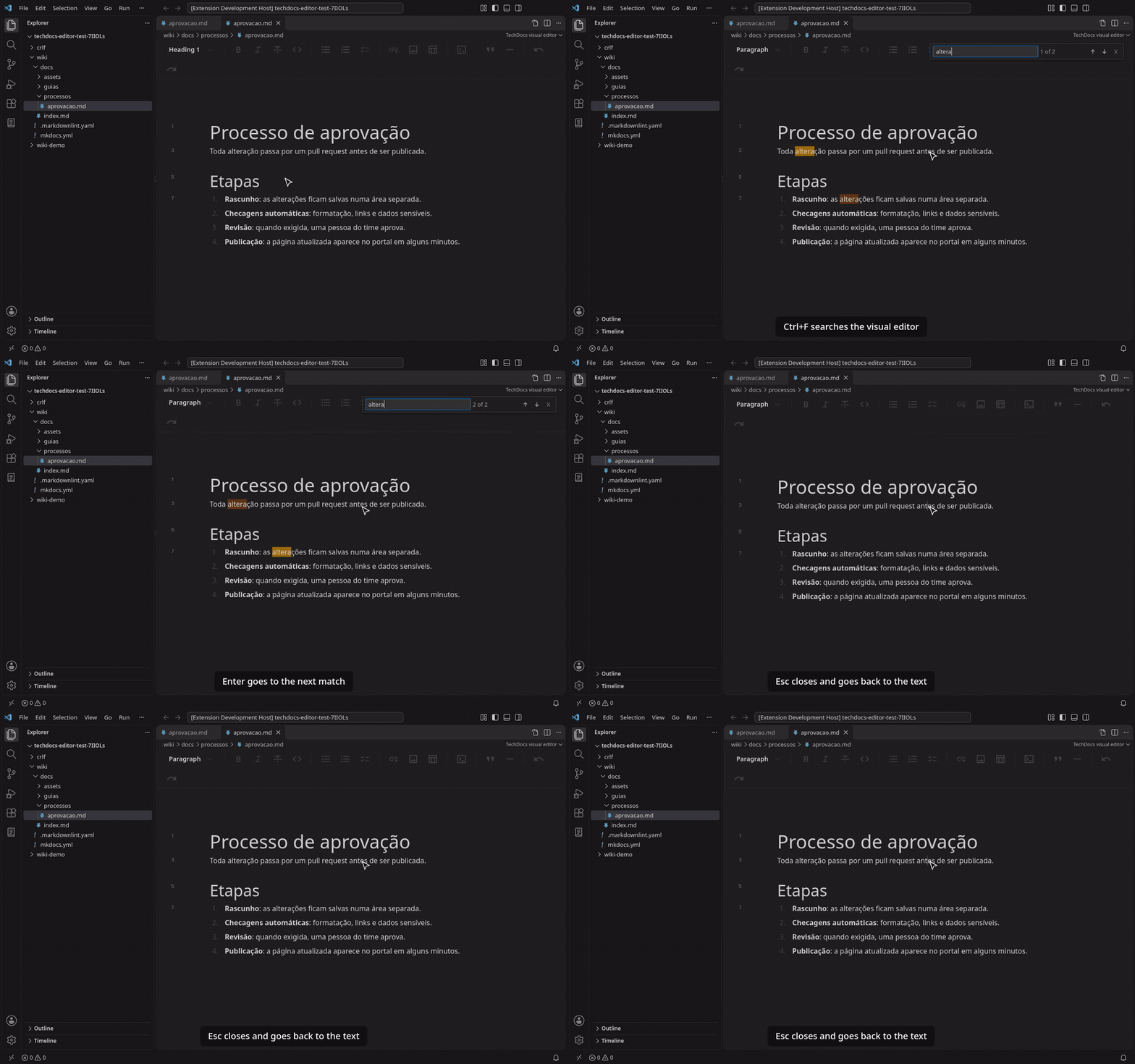
docs_dir, not for every Markdown file (READMEs, changelogs). - Search with Ctrl+F in the visual editor, with "1 of 3" and Enter / Shift+Enter between matches.
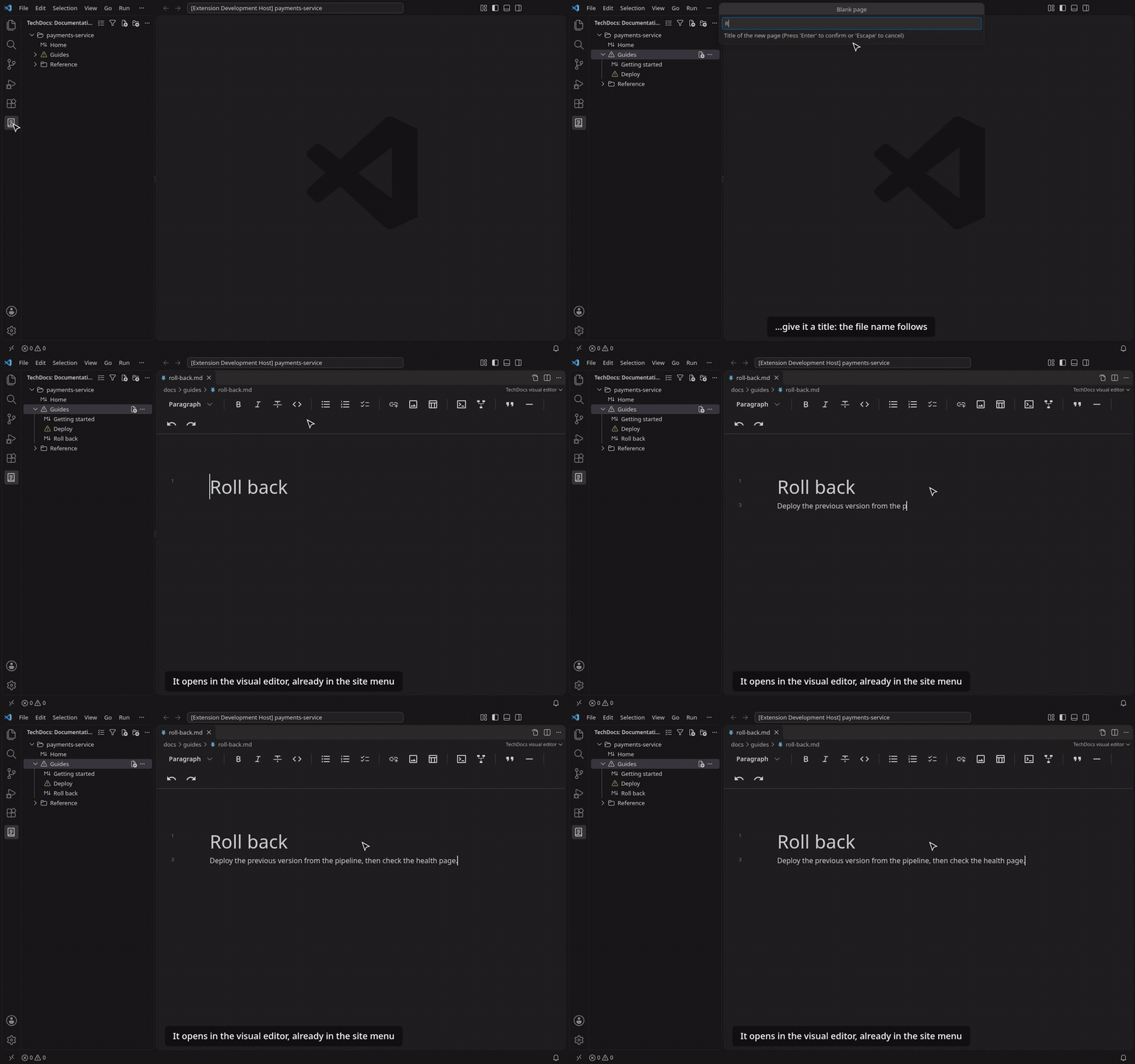
New Page in This Section (right-click a section of the Documentation tree) or the + of the tree starts with Blank page: only the title, for whoever wants to start from scratch. The file name comes from the title and the page goes into the menu, in the section you clicked.
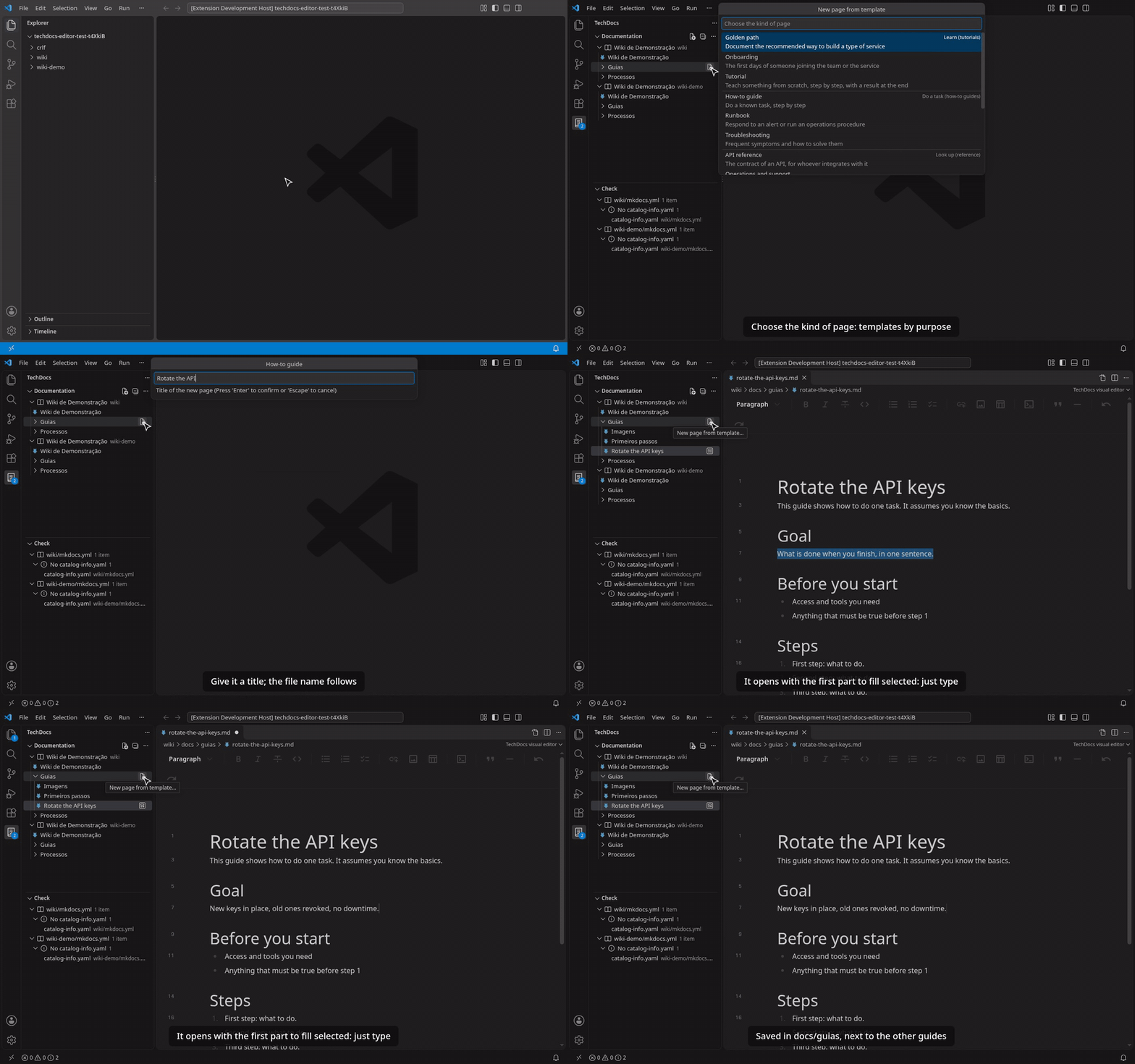
TechDocs: New Page (the + of the Documentation tree, right-click on a page or section, or the command
palette) creates a blank page right after the selected one, in the site menu, and opens it with the title selected:
type over it, and the first time you save the file takes the title's name (Configuração → configuracao.md);
after that the file stays, so links do not break. To start from a kind of page, type / in the page or use the Kinds of page button of the
toolbar: the sections that kind of page needs come in where the cursor is, filled with the date and the owner from
catalog-info.yaml.
| To… | Templates |
|---|---|
| Learn | Tutorial, Onboarding, Golden path |
| Do a task | How-to guide, Short how-to, Runbook, Troubleshooting |
| Look up | Service home page, Operations and support, API reference, Wiki page, Release notes, Glossary |
| Understand | Architecture, Architecture decision record (numbered: adr/0001-…), Postmortem, RFC / design doc |
Every template has a filled-in example: the eye next to it in the list opens the example in the Markdown preview, with no network. The templates and the examples come from edtroleis/techdocs-templates, organized by Diátaxis; the extension ships a copy of a tagged version of it.
The file name comes from the title, never overwrites an existing page and never leaves the docs folder.
Templates follow the language of VS Code (English or Portuguese), pass the formatting check and open in the
visual editor without a single change. On a site with a nav, the page can go straight into it, in the section
you clicked in the tree; only that line is added to mkdocs.yml.
| Layer | Where | How it changes |
|---|---|---|
| Built-in | This extension | A new version of the extension, updated automatically by the Marketplace |
| Your company or team | .techdocs/templates/ in the docs repository (or in the site folder, which wins) |
A pull request in that repository: nothing to publish |
| Company-wide | One GitHub repository of templates for every docs repository (techdocsEditor.templates.repository) |
A pull request in that repository: everyone gets it within an hour |
A template is a Markdown page with a template: block in the front matter. Repository templates come first
in the list and replace a built-in one with the same file name (runbook.md). More folders go in
techdocsEditor.templates.paths, and techdocsEditor.templates.builtIn: false offers only yours. Pages
already created never change when a template changes.
Company templates live in a folder of a GitHub repository, in the same format, and come between the
repository's and the built-in ones. Set techdocsEditor.templates.repository to owner/repo, optionally with
the folder and a branch or tag (acme/docs-templates/templates@v3; pin a tag to choose when to update), and the
host for GitHub Enterprise (ghe.acme.com/acme/docs-templates). The extension tries without signing in first
(public repository) and asks for the GitHub sign-in only if needed. It checks at most once an hour, keeps a copy
for offline use, and TechDocs: Refresh company templates checks right away.
The easiest start is a fork of edtroleis/techdocs-templates:
point the setting to your-org/techdocs-templates/templates. Folders per language (en/, pt-br/) follow the
language of the site, and pages may sit in the Diátaxis folders (tutorials/, how-to-guides/, reference/,
explanation/), which give the category when the front matter has none. A template's example: points to its
filled-in page in examples/<language>/docs/, and the eye opens it on GitHub.
The Templates part of the TechDocs Settings window (the gear on the New page list, or … ›
Settings… in the TechDocs section) shows the templates repository in use, tests access and turns the built-in
templates on or off; empty goes back to the default. For the team saves it in .techdocs-editor.yaml (with the
diff first); Just for me, in your VS Code settings. Three ways to make a repository the default:
| For | How |
|---|---|
| Everyone who opens a docs repository | templates.repository in its .techdocs-editor.yaml; it wins over personal settings, and is ignored in an untrusted workspace |
| One person | techdocsEditor.templates.repository in the user settings (or Just for me in the TechDocs Settings window) |
| The whole company | Distribute the user setting with your device management tools; VS Code policies are not available to extensions |
---
template:
  version: 1
  name: Runbook
  description: Respond to an alert
  category: guide        # tutorial | guide | reference | explanation
  folder: runbooks
  fields:
    alert:
      prompt: Alert name
---

# {{title}}

Alert: {{alert}}. Owner: {{owner}}. Reviewed on {{date}}.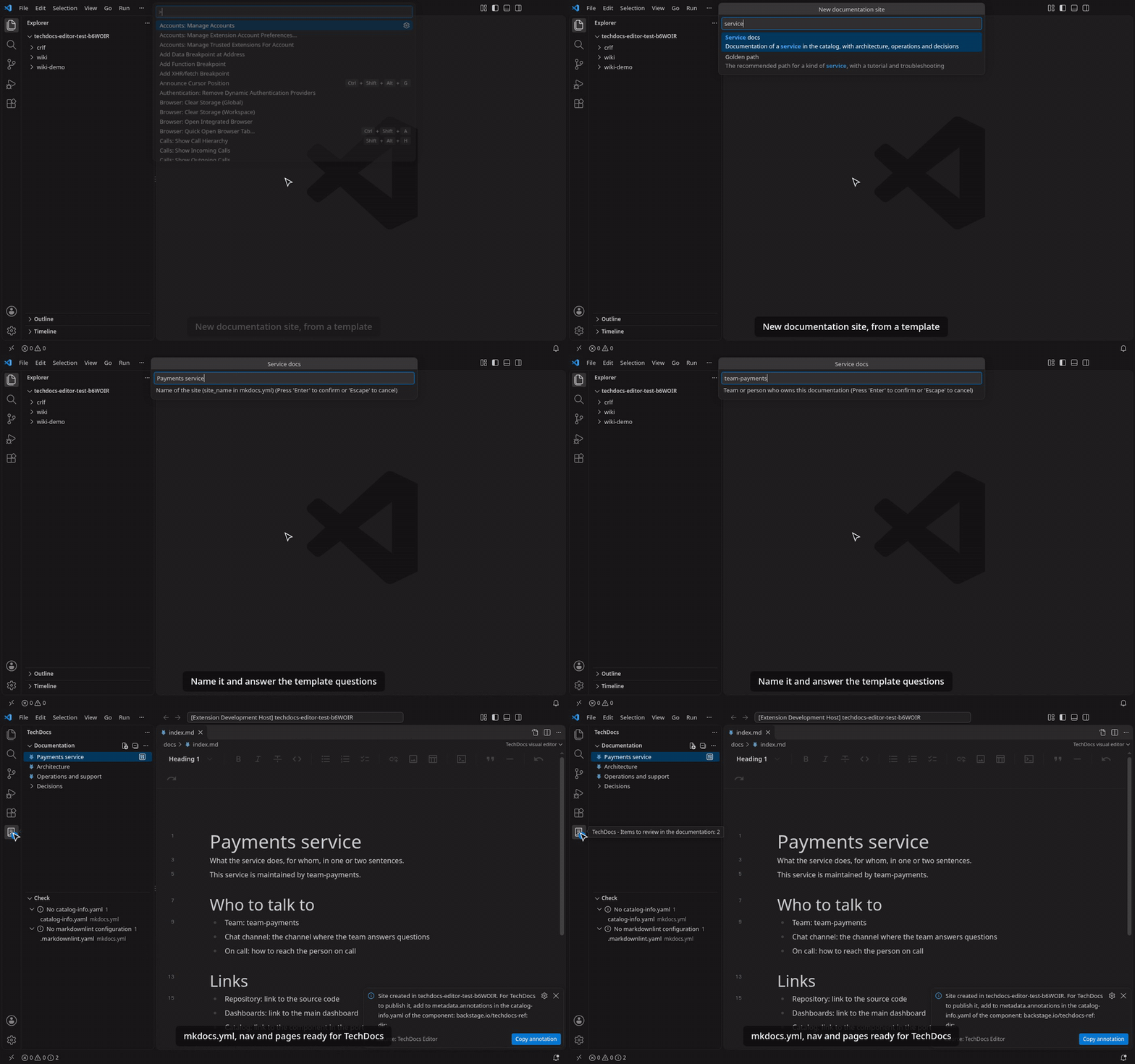
TechDocs: New documentation site… (command palette, the Documentation view menu, or right-click on a folder) and Create the documentation in the sidebar open a preview in the TechDocs sidebar before anything is written:
- On top: the template, the site name (suggested from the README title) and the owner (from
catalog-info.yamlorCODEOWNERS), each saying where the suggestion came from. With no owner found,catalog-info.yamlstarts unchecked; the owner is required only while it is checked. - Files or Menu: uncheck what you do not want; in Menu, drag (or use the arrows or Alt+↑/↓) to reorder and double-click (or F2) to rename. + Page asks for a path in Files and a title in Menu, with the kind of page (tutorial, how-to guide, ADR…); + Section adds a group to the menu.
- What already exists: a page in
docs/that the template also brings asks Keep current or Use the template one; the README can be copied, moved or left out. - Click a file to see its text. Create writes
mkdocs.yml(with thenavand thetechdocs-coreplugin), the pages,catalog-info.yamlwith the TechDocs annotation and, when the repository has none,.markdownlint.yamlwith the Markdown rules, so they go in the commit; it never overwrites a file. - The README as the home page: next to a
README.md, choose Copy to docs/index.md, Move to docs/index.md (the README keeps a link to the docs) or leave it out. Links todocs/…are made relative to the docs folder. - Pages you already have: with pages in
docs/and nomkdocs.yml, Use the pages that already exist creates onlymkdocs.yml, with thenavbuilt from the folders and page titles and thetechdocs-coreplugin, shown in a diff first. No page changes. catalog-info.yamlonly where Backstage is used: when another repository nearby has one, the panel offers it checked; otherwise it starts unchecked and says what that means (the site does not show up in Backstage).
| Site | Pages |
|---|---|
| Blank (the default) | Only the home page, to start from scratch |
| Service docs | Service home page, Architecture, Operations and support, and the first ADR |
| Team wiki | Home (how to use the wiki), Onboarding, Guides, an example wiki page |
| Golden path | Overview, Getting started tutorial, Troubleshooting |
| API | Overview and first call, Authentication, API reference, Errors, Changelog |
| Library / SDK | Overview with a minimal example, Installation, Getting started, Usage guide, API reference, Contributing |
| Internal platform | What it offers, Getting access, Golden path, Support and SLAs, Glossary |
| Operations runbooks | Alert index, Escalation, an example runbook, an example postmortem |
| Project / initiative | Goal, status and people, RFC, Roadmap, the first decision (ADR), Release notes |
Your own site templates are folders in .techdocs/templates/ with a template.yml: each file comes from a
page template (page, yours or a built-in one) or from a file in the folder (source).
version: 1
name: Platform service
description: Docs of a service on our platform
fields:
  squad:
    prompt: Squad
files:
  - path: index.md
    title: "{{site_name}}"
    source: home.md          # .techdocs/templates/platform-service/home.md
  - path: runbooks/deploy-failed.md
    title: Deploy failed
    section: Runbooks        # a group in the nav
    page: runbook            # a page template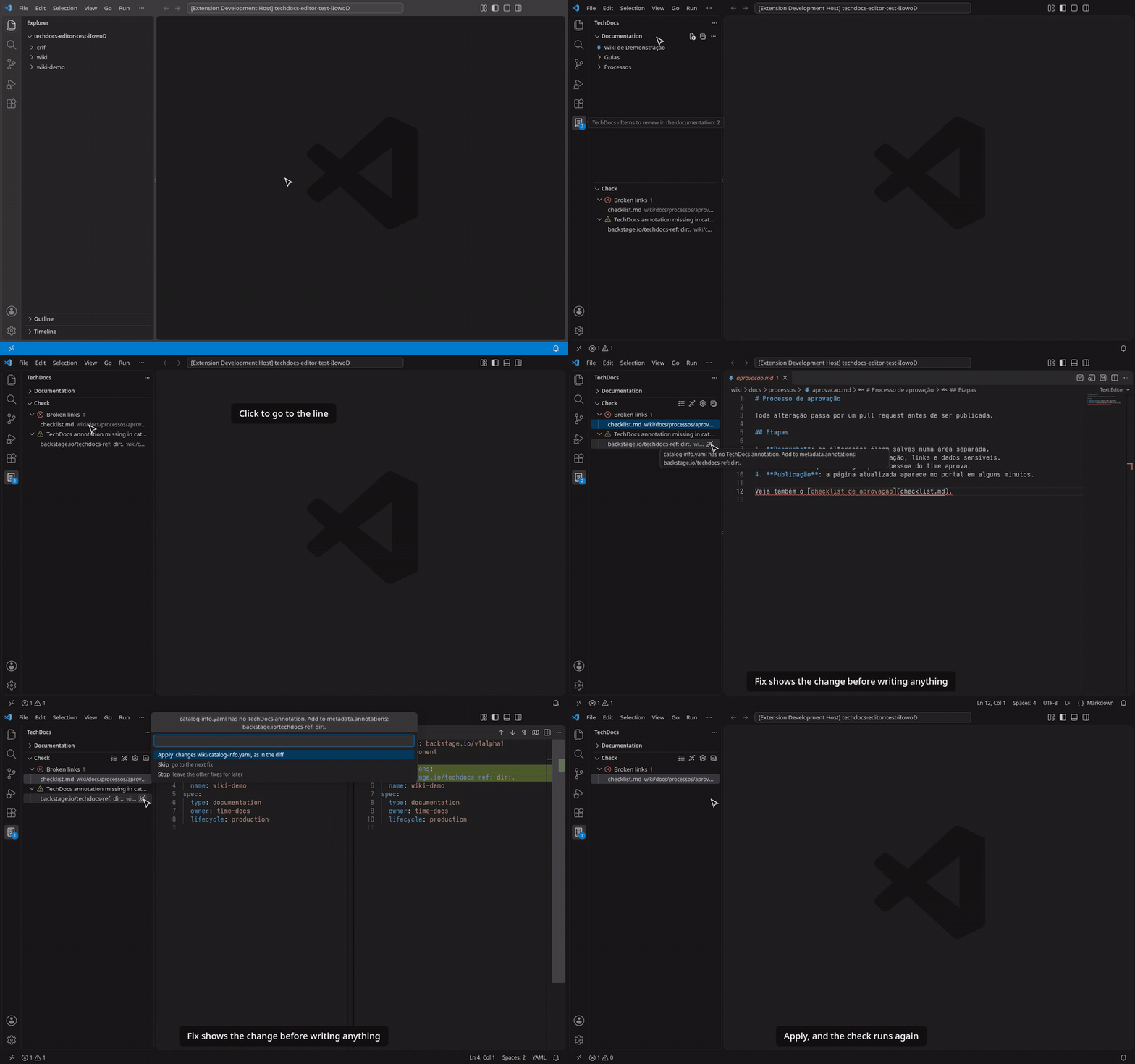
The Maintenance section of the TechDocs sidebar (turn on techdocsEditor.maintainer to see it) lists, grouped by kind, what is missing or wrong for TechDocs to
build each site: site_name and the techdocs-core plugin in mkdocs.yml, the docs folder
and its index.md, nav entries pointing to missing pages and pages left out of the nav, the
backstage.io/techdocs-ref annotation in catalog-info.yaml, the markdownlint configuration, formatting
problems, links to missing files and missing images. It checks on its own when it first shows up and again
after you save; the icon shows how many items are left. A click opens the file at the line, and Fix shows the
diff of that one fix before writing anything. The same items are in the Problems panel.
The Check the Documentation button (✓) in the title of the Documentation tree, also in the TechDocs section of the Explorer, checks the site shown and says how many items it fixes on its own and how many need you. View opens them in the Problems panel; Fix all automatically applies the automatic fixes at once (formatting of every page, pages left out of the menu, the plugin, missing pages of the menu), and the notice at the end has Undo. After you save, it checks again only the sites already checked.
TechDocs: Prepare the documentation in this repository creates a site from a template when there is no
mkdocs.yml. Otherwise it goes through the fixes one by one, showing the diff first, so you apply, skip or
stop. Broken links and missing images have no fix: only a person knows the right target.
Not every Backstage reads catalog-info.yaml from the repository. The gear of the Check section opens the
TechDocs Settings window, where catalog-info.yaml sets how the check treats it: Check only if it exists (the default; a missing file is just a hint,
not counted on the icon), Require it (a missing file is a problem, with a fix that creates a minimal one) or
Do not use it. In the default mode, a missing file is mentioned only when another repository nearby has a
catalog-info.yaml (a sign that Backstage reads them). Save it For the team in .techdocs-editor.yaml (catalog:) or Just for me in the
techdocsEditor.catalog setting; the repository file wins.
The documentation always lives on your computer: you edit it here and send it to GitHub when you want.
- TechDocs: Open documentation from GitHub… takes a URL or
owner/repo(GitHub Enterprise Server too, withtechdocsEditor.github.host), clones it intotechdocsEditor.clone.directory(~/Documents/TechDocsby default) and opens it. Links likevscode://edtroleis.techdocs-editor/open?host=github.com&repo=acme/wiki&path=docs/index.mdare checked before anything opens, and open the copy you already have instead of cloning again. - Ctrl+S only saves on this computer. Send (N) in the Documentation tree, at the top of the page and in the status bar counts what changed; the files show M (changed) and N (new).
- Send opens a screen with what goes, page by page, Undo per item, a summary you can edit and the check (links, images, menu, formatting) with Fix. Files outside the documentation are never sent.
- By default the whole send becomes one pull request, followed in the Send panel until it is approved:
sent, checking, waiting for review, in the documentation. New changes go with Send again; Give up this
send brings your changes back without losing them. With
techdocsEditor.send.targetset tomain, it goes straight to the main branch. - A directory that is not on GitHub yet: the first send creates the repository (private by default) and links it. When Git does not know your name and email, it asks once, with GitHub's private email as an option.
- Signs in with the GitHub account of VS Code. The token stays with VS Code; Git uses VS Code's Git extension.
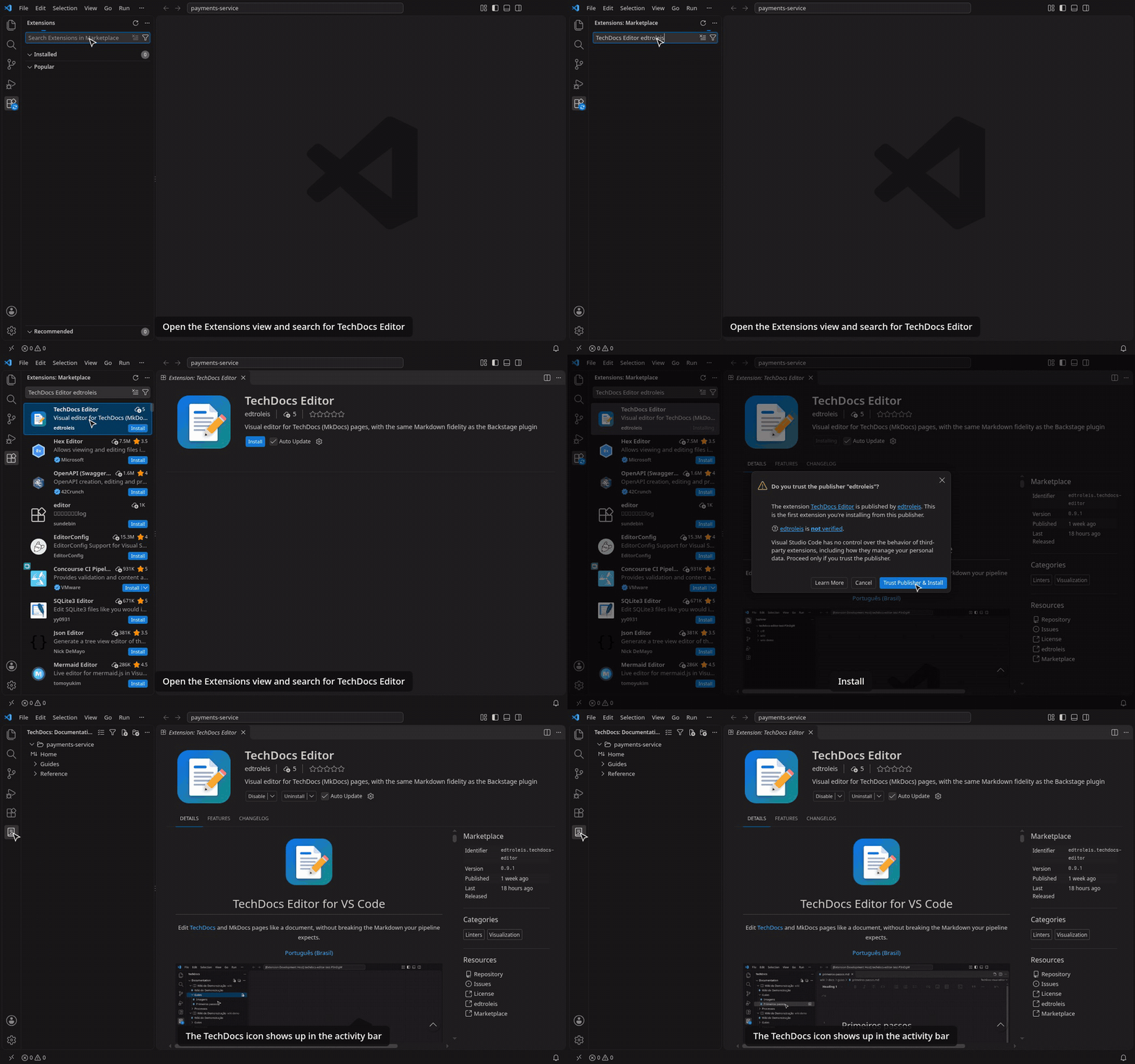
- Install TechDocs Editor from the VS Code Marketplace: in the Extensions view (Ctrl+Shift+X), search for TechDocs Editor and click Install.
- Open a folder that has a
mkdocs.yml(the extension starts on its own there). Nomkdocs.ymlyet? The TechDocs icon also shows up next to aREADME.md, adocs/folder or acatalog-info.yaml, with Prepare the documentation. - Open a page:
- from the Documentation section of the TechDocs icon in the activity bar, or
- with the Open in visual editor button in the editor title bar of a
.mdfile, or - with Reopen Editor With… → TechDocs visual editor.
New to it? Help → Welcome → Get started with TechDocs Editor walks through creating a site, the sidebar, a new page, the visual editor, the check, publishing and company templates.
To always open documentation pages in the visual editor, turn on techdocsEditor.openVisualByDefault. Use
Reopen Editor With… or TechDocs: Open as Markdown text to see the text.
… › Settings… in the TechDocs section opens the TechDocs Settings window in the section itself, one
option under the other, each choice saved right away: how Send works (for review or straight to the
documentation), where the GitHub copies go, the Templates repository, catalog-info.yaml in the check,
Images and attachments and two editor options. Templates, catalog-info.yaml and images and attachments are For the team (in .techdocs-editor.yaml, with the diff
first) or Just for me; switching moves the value in use. All settings in VS Code at the bottom opens the rest.
| Setting | Default | What it does |
|---|---|---|
techdocsEditor.openVisualByDefault |
false |
Open pages inside a MkDocs docs_dir in the visual editor instead of the text |
techdocsEditor.siteDepth |
2 |
How many folders below the workspace folder the search for sites (mkdocs.yml) goes. Deeper sites appear when you open one of their pages or enter their folder with Switch Directory or Repo… |
techdocsEditor.syncExplorer |
true |
Moving, renaming or deleting pages and directories of the docs in the VS Code Explorer also updates the menu of the site (nav) and the links of the pages; Ctrl+Z in the Explorer undoes it all together. Right-click a directory in the Explorer › Open in TechDocs to show it in the TechDocs view |
techdocsEditor.sites |
all | Documentation sites offered by Switch Directory or Repo… and checked: folders of a mkdocs.yml (or a folder above them). Set it with Filter Sites in the Tree… in the view's … menu |
techdocsEditor.maintainer |
false |
Show the Maintenance section (checking the documentation, preparing the repository and its options), for whoever maintains the documentation |
techdocsEditor.images.maxSizeMB |
5 |
Largest image the visual editor saves. Images go into the repository: large files weigh on every clone |
techdocsEditor.attachments.images |
images |
Directory of the images, inside docs_dir |
techdocsEditor.attachments.imageTypes |
png, jpg, jpeg, gif, webp, svg |
Accepted image types |
techdocsEditor.attachments.files |
assets |
Directory of the other attachments, inside docs_dir |
techdocsEditor.attachments.filesMaxSizeMB |
20 |
Largest attachment |
techdocsEditor.attachments.fileTypes |
pdf, docx, xlsx, pptx, csv, zip… |
Accepted attachment types (*: any, except executables, scripts and .md). attachments: in .techdocs-editor.yaml wins, field by field |
techdocsEditor.templates.paths |
[] |
More folders with page and site templates, relative to the workspace folder (.techdocs/templates/ is always read) |
techdocsEditor.templates.repository |
"" |
Company templates in a GitHub repository: owner/repo[/folder][@ref] |
techdocsEditor.templates.builtIn |
true |
Offer the templates that come with the extension |
techdocsEditor.catalog |
auto |
How the check treats catalog-info.yaml: auto (check it only if it exists), required or off. Also the gear in the Maintenance view; catalog: in .techdocs-editor.yaml wins |
techdocsEditor.send.target |
pullRequest |
Send: a pull request followed until it is approved, or main (straight to the main branch) |
techdocsEditor.branchPattern |
docs/{login}/{date} |
Branch of each send for review, created when you are on the main branch |
techdocsEditor.clone.directory |
~/Documents/TechDocs |
Where Open documentation from GitHub clones the repositories |
techdocsEditor.verification.mode |
auto |
auto (the pipeline when there is one), pipeline or editor |
techdocsEditor.verification.startTimeoutSeconds |
120 |
Wait for the first check before warning that nothing started |
techdocsEditor.verification.checkHelp |
{} |
Plain-language message per check name, shown when it fails |
techdocsEditor.polling.intervalSeconds / idleIntervalSeconds |
8 / 60 |
Check queries while something runs / when idle. Nothing is queried while the window is in the background |
techdocsEditor.github.host |
"" |
Your GitHub Enterprise Server, e.g. github.example.com, besides github.com |
techdocsEditor.github.scopes |
["repo"] |
Scopes asked when signing in to GitHub (public_repo for public repositories) |
A .techdocs-editor.yaml at the repository root (verification.mode, startTimeoutSeconds, checkHelp)
wins over the settings, so the whole team gets the same checks.
Fix formatting on save:
| Command | What it does |
|---|---|
| TechDocs: Open in visual editor | Opens the current .md file in the visual editor |
| TechDocs: Open as Markdown text | Opens the text of the page side by side with the visual editor |
| TechDocs: New Page | Creates a blank page right after the selected one and opens it with the title selected |
| TechDocs: New documentation site… | Creates mkdocs.yml and the pages of a documentation site from a template |
| TechDocs: Check the documentation of the repository | Lists what is missing or wrong for TechDocs in the Maintenance view and the Problems panel |
| TechDocs: Prepare the documentation in this repository | Creates a site, or applies the fixes of the check one by one with the diff first |
| TechDocs: Open documentation from GitHub… | Clones a GitHub repository into a suggested directory and opens it (URL or owner/repo) |
| TechDocs: Send changes to the repository | Opens the send screen with what goes to GitHub |
| TechDocs: Refresh company templates | Checks the company templates repository right away instead of waiting for the hourly check |
| TechDocs: Settings… | Opens the TechDocs Settings window in the TechDocs section: send, GitHub copies, templates, catalog-info.yaml and the editor |
For each page, the extension looks for .markdownlint.jsonc, .json, .yaml or .yml from the folder of
the page's mkdocs.yml up to the workspace folder, and uses the first one it finds (markdownlint's defaults
otherwise). Only pages inside a docs_dir are checked.
- Restricted mode: in an untrusted workspace, the repository's configuration is not read and pages are not checked until you trust the folder.
- With the markdownlint extension installed, its diagnostics win in the Problems panel, so you don't see each problem twice. The visual editor still shows the list.
- No telemetry. The extension collects nothing.
- No network until you send. Pages are read and written through VS Code; the only requests are for images
your pages already link with
https://. Send and Open documentation from GitHub talk only to the GitHub of the repository, from the extension host: the token never reaches the webview. WithtechdocsEditor.templates.repositoryset, the extension also reads that repository, at most once an hour; in an untrusted workspace only your user setting counts, never the folder's. - The list of cloned repositories keeps only
owner/repoand the directory, never a token. - The visual editor runs in a webview with a strict content security policy: only the extension's own scripts run.
- VS Code 1.100 or later.
- Works on local folders and clones (local mode). Git stays with VS Code's source control.
- Send and Open documentation from GitHub need Git and VS Code's Git extension (not in VS Code for the Web).
- Math (LaTeX) is off, as in TechDocs' default MkDocs setup.
- HTML blocks with
markdown(other than cards) and other advanced Material for MkDocs constructs are still being hardened. Review the diff before committing pages that use them.
Bug reports and pull requests are welcome. See CONTRIBUTING.md for the development setup and the tests.